

Using Video
You can use video in your visualization in different ways. We will discuss three ways here.
- Video as background, covering the whole canvas
- Video as shape, like an image
- Video in a pop-up dialog box
Video as background
You have probably seen videos in the demo channel on Dragon1 or some help pages.
The video starts with a visualization fading away; next, you see a video play. Now you can do the same.
To place a video as background:
- Select a folder
- Insert a Visualization, give it a name
- Select the Visualization
- Go to the Page Attributes panel and expand it by clicking on the name
- In the Video (MP4) field, enter a valid URL to an MP4 file. Please take note of copyright issues here. You are responsible for the content you upload.
- You can upload MP4 videos to your sites folder and use them.
- Set the background opacity to 1; we want to see through the background to see the video.
- To tone your video, provide a background color and set opacity between 0.1 and 0.9.
- Be sure to save it all to avoid losing any of your work here.
- Now, you can create a visualization (using one or more frames/slides). This visualization will automatically fade away (default setting).
- If you want the player to start the video automatically, check the AutoPlay checkbox.
- The last thing is to share your visualization to make it available on a channel and a watch page.
- To publish a video only in the Viewer, you must change the publication status to public or worldwide. If you choose 'public', the video is viewable only by people logged in to your account. (If your account is locked, you cannot publish it publicly. This is an optional safety measure for business professionals who only want to share things internally.)
- You can also apply graphical filters to your video. Just play around with the colors and profiles for rectangles you place on top of your video.
Video as a shape
To use video as a shape (Only Google Chrome)
- Insert a shape on a Visualization
- Select the Video shape from the basic shapes panel
- Go to the Text Attributes panel and click on the name to expand it
- Enter a valid MP4 URL in the SOURCE URL field and press TAB
- You will now see your video in the shape
- You can place as many videos as this on your visualization.
Video in a popup dialog box
To use video in a pop-up dialog box:
- Insert a shape on a Visualization
- In the description field, place an embed link like this:
<iframe width="320" height="180" src="https://www.youtube.com/embed/gvCzFCGte58" frameborder="0" allowfullscreen></iframe>
- If you switch your visualization to the standard model, presentation mode, watch on a watch page, or in the Viewer, on mouseover, you will see a pop-up with your video.
Example Screenshots
Below are example screenshots showing you the steps we discussed above:
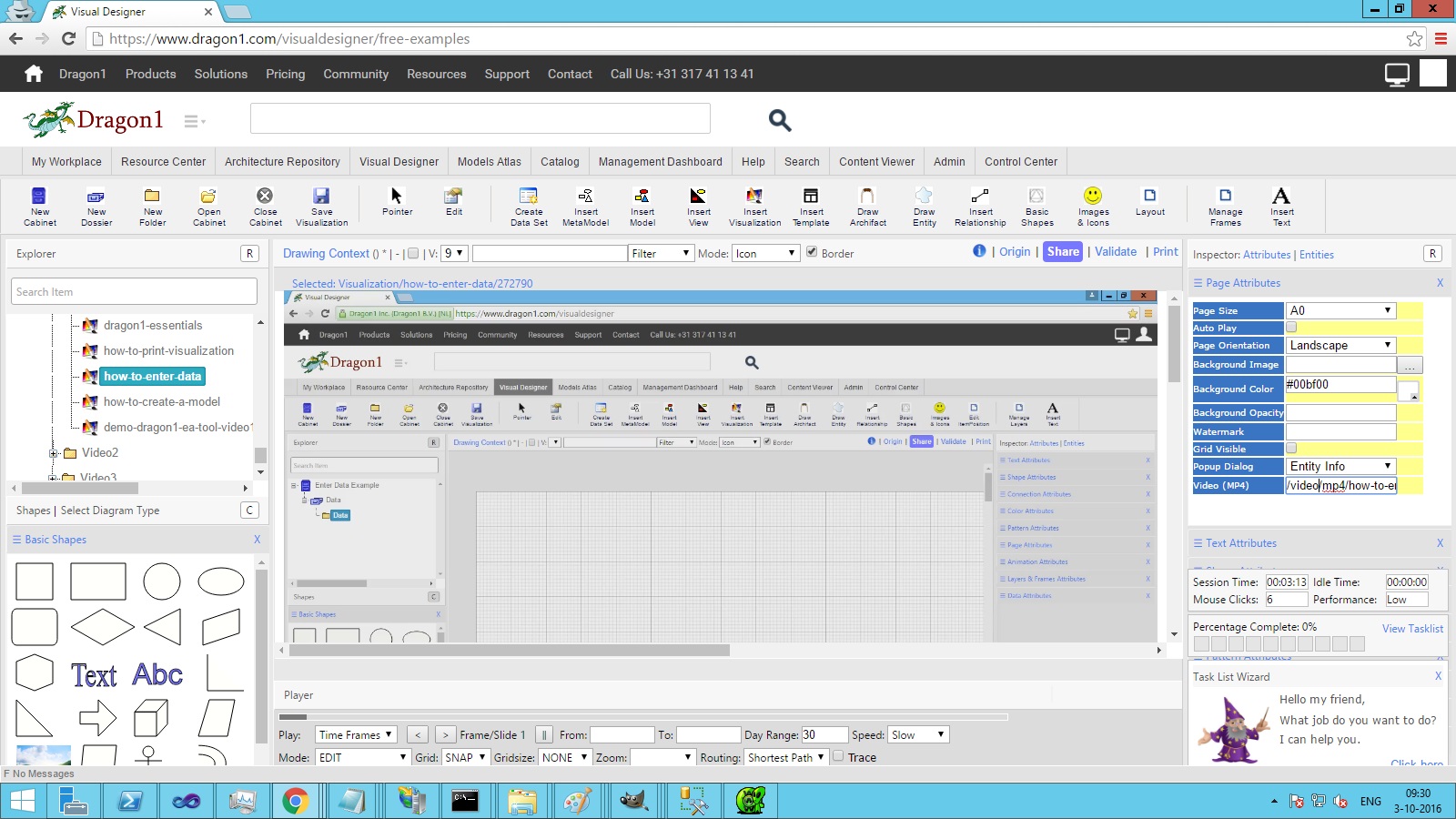
Example screenshot showing an MP4 URL placed in the MP video field.
The visualization has a video in the background:
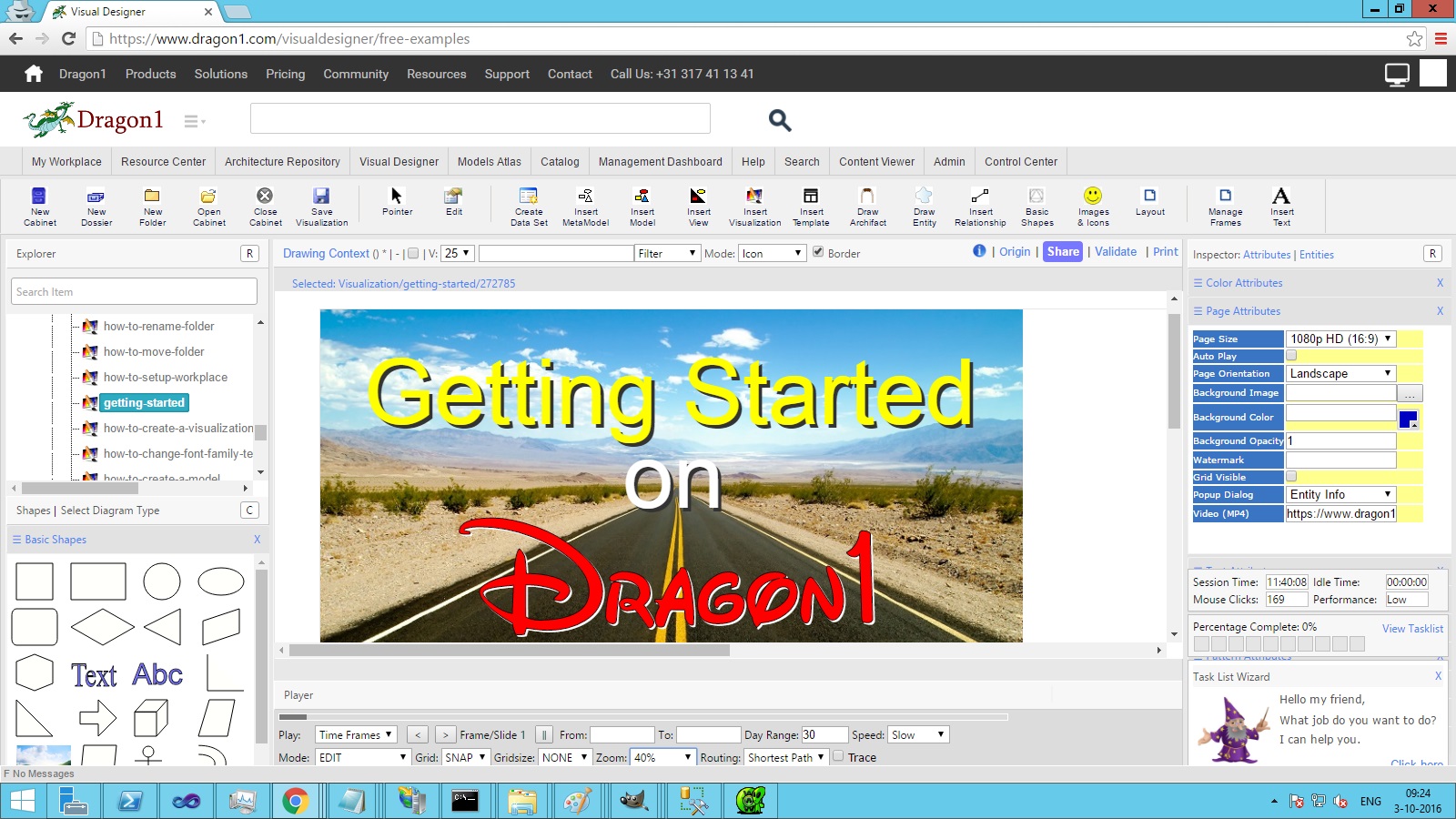
Example screenshot shows a full visualization as a header of the video.
This visualization will fade, finally showing the video. In this way, you can create your intro to any video:
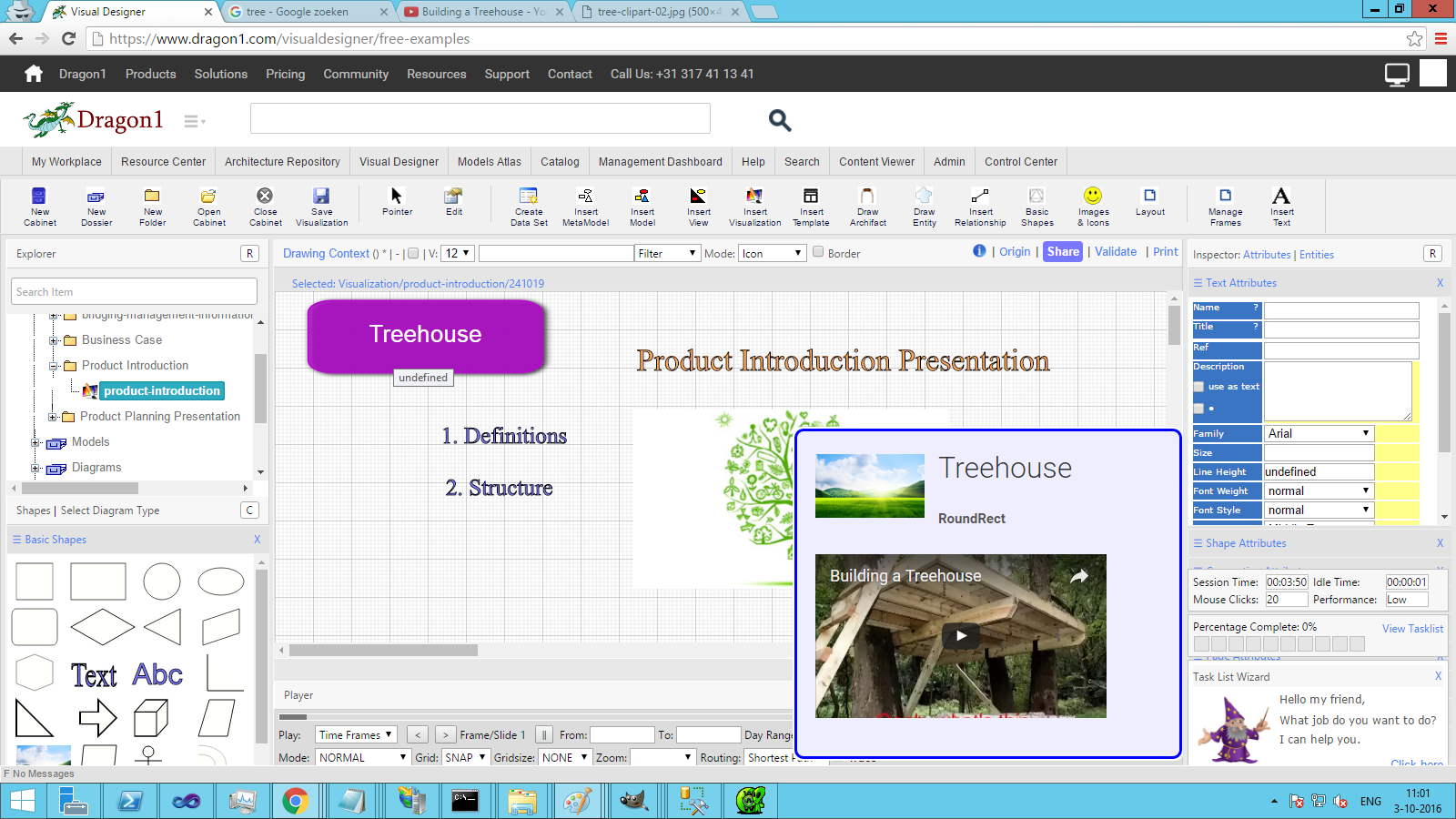
Example screenshot shows the video in a pop-up dialog box.